

Add Content Browser
The Add Content browser (right sidebar, plus.square.on.square icon) is the primary way to find and load content in Arkestra. It covers shaders, stock media, local files, external inputs, and saved chain presets.
Content categories
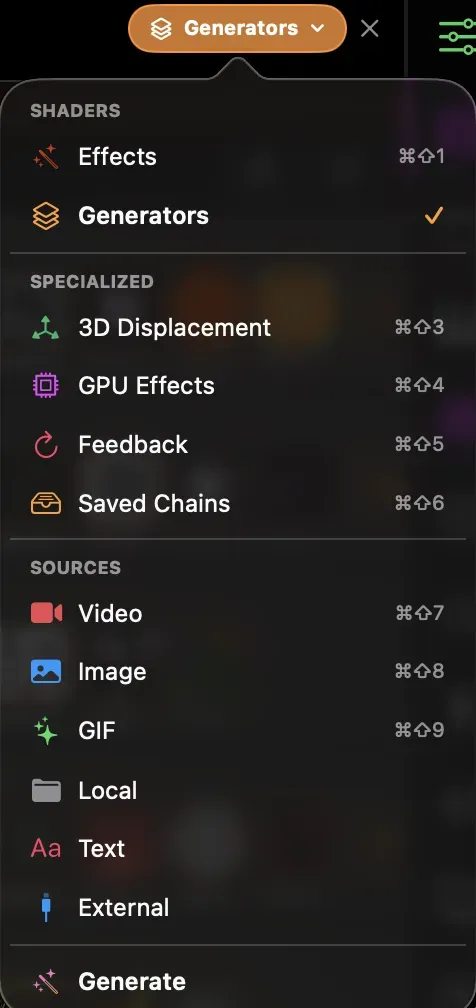
Section titled “Content categories”A category pill at the top of the panel selects which content type is shown. Click the pill to open the picker:
| Category | Contents |
|---|---|
| Generators | ISF layer/generator shaders — produce pixels from scratch |
| Effects | ISF effect shaders — transform an input texture |
| Feedback | Feedback loop effects (Feedback Effect kind) |
| 3D Displacement | ISF displacement generators for point cloud tracks |
| Video | Stock video footage (Pexels library) |
| Image | Stock photos (Unsplash) |
| GIF | Animated GIFs (Giphy) |
| Local | Video, image, and GIF files from your local folders |
| External | Syphon, Camera, and other live inputs |
| Text | Text generator with customizable styles |
| 3D | 3D scenes and objects |
| GPU Effects | Built-in GPU compute effects |
| Saved Chains | Saved chain presets (local, community, and from projects) |
The available categories adapt to the selected track type — categories that don’t apply to the current track are hidden automatically.
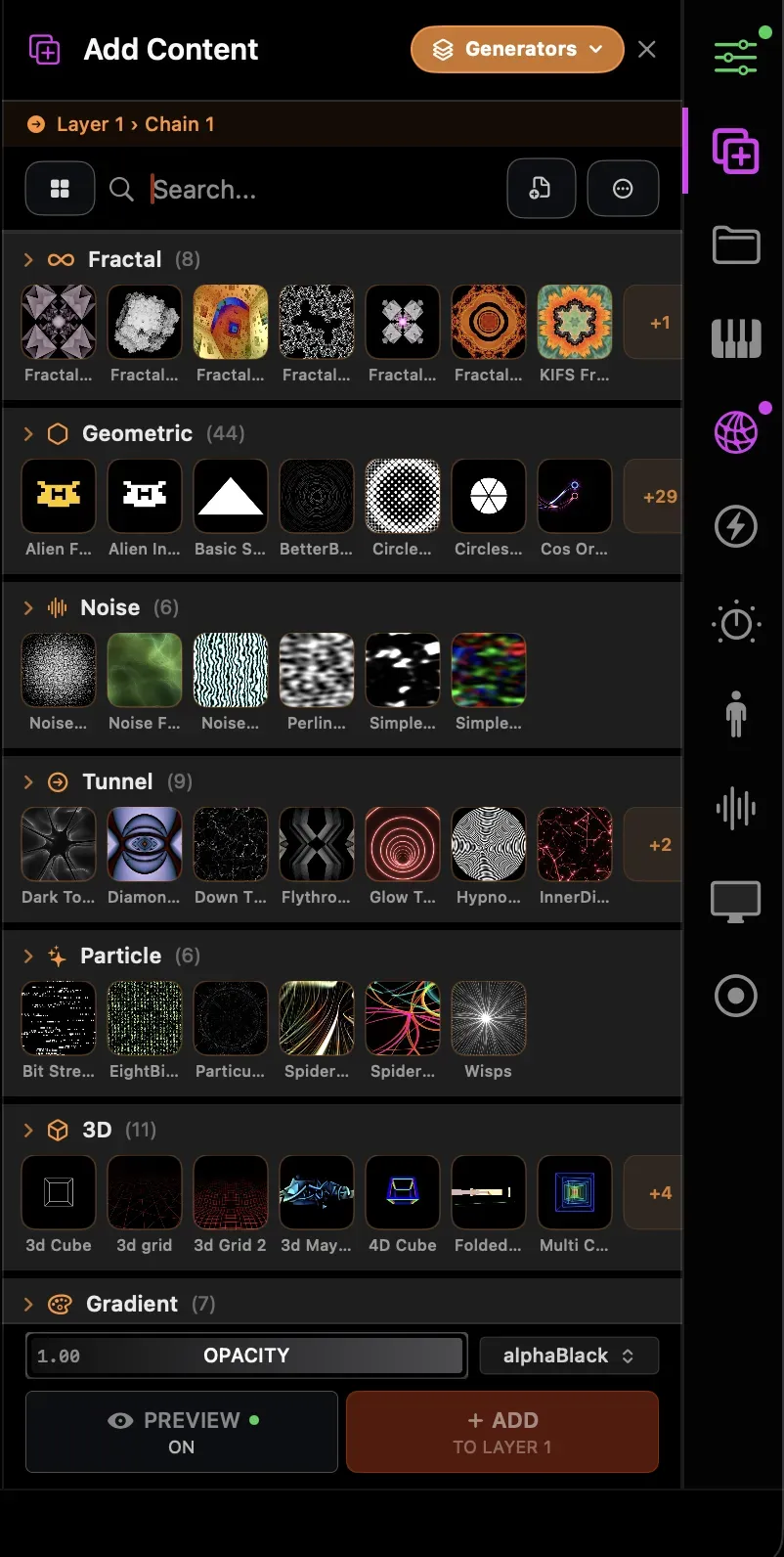
Browsing shaders (Generators / Effects)
Section titled “Browsing shaders (Generators / Effects)”When a shader category is active, the browser shows:
- Search field — filters by name or category keyword
- Source selector — choose between Arkestra shaders, your own shaders (“My Layers” / “My Effects”), Community Shaders, ISF Community creator accounts, Glslop (shaders from glslop.com), or an online search
- Category groups — shaders grouped by visual style (Fractal, Blur, Glitch…), collapsed by default with peek thumbnails
Live preview on hover — hovering over any effect row shows an animated live preview of the shader alongside a larger thumbnail, so you can audition effects before adding them.
Preview parameters
Section titled “Preview parameters”When a shader preview is active, a collapsible Parameters (N) section appears in the footer below the browser. It mirrors the same parameter controls you’d see in the track inspector, so you can inspect — and adjust — an effect’s sliders before adding it to your chain.
Click Parameters (N) to expand or collapse the list. The expanded state is remembered while you browse, so it stays open as you switch between shaders. The Preview toggle in the footer controls whether the live preview (and the parameter list) is active at all.
Loading a shader
Section titled “Loading a shader”- Click a shader row to select it (highlights it)
- Double-click → immediately adds it to the current chain
- “Add” button (appears on hover or selection) → adds the selected shader
- Drag from the browser into the chain → inserts at the drop position
Community Shaders
Section titled “Community Shaders”The Community Shaders source lets you browse and load effects shared by other Arkestra users directly from the browser. Switch to it using the source selector at the top of the panel. Community shaders are downloaded on first use and cached locally.
Cloud shaders
Section titled “Cloud shaders”If you’re logged in to your Arkestra account, the browser shows shaders you’ve created or starred on arkestra.app. They are downloaded on first use and cached locally.
Studio (shader editor)
Section titled “Studio (shader editor)”Right-click any shader row → Edit in Studio to open the built-in ISF shader editor. Studio lets you edit the GLSL source, live-preview the result, and publish changes to your account.
Shader parameter presets
Section titled “Shader parameter presets”Any shader effect can save its full parameter state as a named preset, so you can snapshot a look and return to it later — even in a different project.
Open the presets popover from the effect card header (an ISF shader’s card), then:
- Save Current As… — name and store the current parameter values
- Click a preset — apply its saved values back to the shader
- × — delete a preset
- Manage All Presets… — review and manage every preset you’ve saved
Presets are stored per shader and saved to disk, so they persist across projects and sessions.