

Modulation
Modulation is the system that connects dynamic sources — audio, MIDI, LFOs, sequencers, OSC — to any parameter in any track or effect.

Almost every float or bool parameter in Arkestra can be modulated. This is how you create audio-reactive, tempo-synced, or performance-controlled visuals without manual tweaking.
How to map a modulation source
Section titled “How to map a modulation source”Right-click any parameter → Map to… — the context menu shows all available modulation sources.
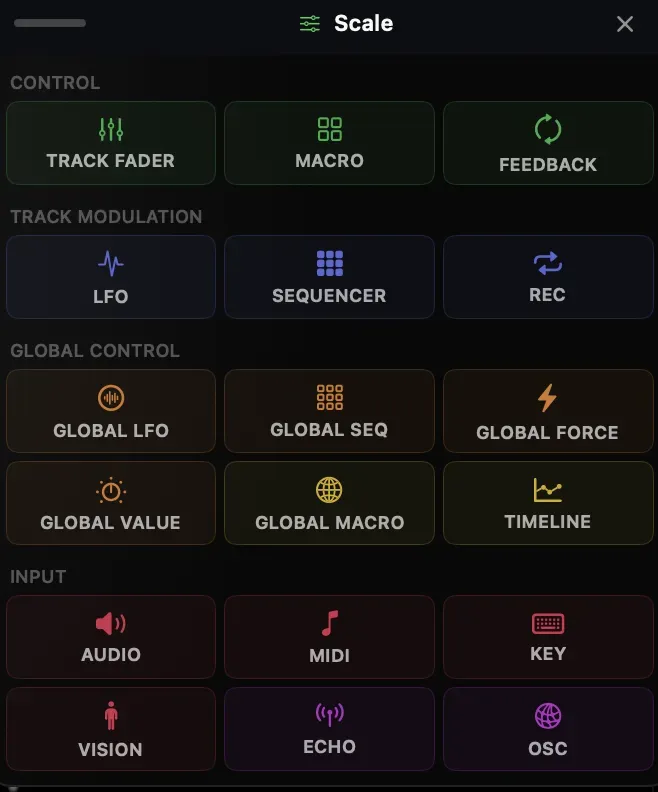
Or drag from the source (e.g. an LFO in the Modulation panel) to the parameter target.
Modulation sources
Section titled “Modulation sources”| Source | Description |
|---|---|
| LFO | Oscillator — sine, square, ramp, staircase, bounce, pulse, S&H, and more |
| Sequencer | Step sequencer with up to 16 steps |
| Audio | Kick, snare, hi-hat detector ranges (3 configurable bands) |
| MIDI CC | Any CC, note, or pitchbend from any connected MIDI device |
| OSC | Incoming OSC values via UDP |
| Ableton Link | Tempo sync for all beat-synced LFOs and sequencers |
| Fader | Direct manual control (the default) |
Modulation stack
Section titled “Modulation stack”A parameter can have multiple modulation sources stacked — they’re summed together. For example: base value set by a fader + LFO on top + occasional audio kick.
Open the Parameter Detail view (click the modulation icon next to a parameter) to see and manage the full stack.
Modulation scaling
Section titled “Modulation scaling”Each modulation assignment has:
- Min / Max — the output range (maps the [0–1] modulation signal to [min–max] parameter range)
- Depth — scales the modulation amplitude
- Invert — flip the signal
This lets you map the same audio band to multiple parameters with different depths and ranges.
Transfer Curve
Section titled “Transfer Curve”Any mapped parameter can run its modulation signal through a Transfer Curve — a draggable 0–1 → 0–1 remap that gives you precise control over how an incoming signal translates into visual output.
Enable Transfer Curve in the parameter’s mapping inspector, then:
- Mode — Stepped (quantised horizontal bands) or Linear (interpolated between points)
- Click an empty area to add a point; drag points to reshape the curve
- ⌘-drag a band/segment to move it vertically
- ⌥-click (or double-click) a point to delete it
A playhead line shows the current input value against the curve. The editor lives directly in the sidebar mapping panel, so you can shape and see the result immediately.