

Display & Fullscreen
Arkestra offers two ways to focus on your output: a fullscreen mode that hides the editing UI in the main window, and an external screen feature that opens a separate output window on any connected display.
Fullscreen mode
Section titled “Fullscreen mode”Click the fullscreen button in the top-right toolbar (the arrow.up.left.and.arrow.down.right icon, requires a license). Arkestra hides the top bar, track list, chain slots bar, and browser panel — the main window becomes canvas-only.
Click anywhere on the canvas or press Escape to exit fullscreen.
External screen output
Section titled “External screen output”To send output to a second display, projector, or LED wall:
- Connect your external display
- Open the Output panel (yellow
displayicon) in the right browser sidebar - Click Open New Window
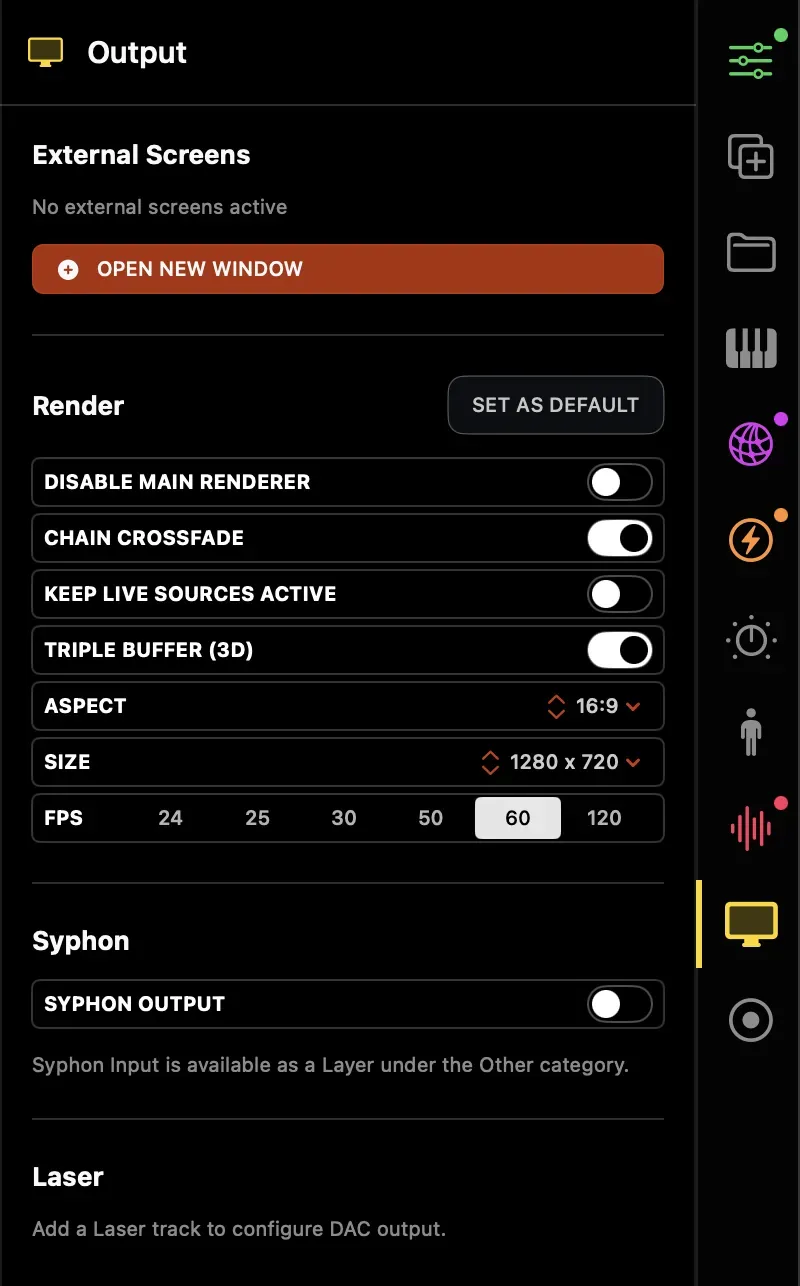
A new floating window opens containing just the rendered canvas. You can move and resize it freely, or drag it to the external display and use macOS fullscreen (⌃⌘F) to make it fill that screen.
The editing window continues to function on your primary display independently of any external output windows. Multiple external windows are supported — each additional click of Open New Window adds another.
To close all external windows, click Close All in the Output panel.
Canvas resolution
Section titled “Canvas resolution”The canvas resolution is set in the Output panel under the Render section. Common choices:
| Resolution | Use case |
|---|---|
| 1920×1080 | HD projector / monitor |
| 3840×2160 | 4K display / high-res output |
| 1280×720 | Lower GPU load |
| Custom | Match your specific output spec |
The canvas resolution is independent of your display resolution — you can render at 4K and output to a 1080p display, or vice versa.
Multiple outputs
Section titled “Multiple outputs”For multi-output rigs, use Syphon to route to Resolume, MadMapper, or other software that handles multi-display mapping.
See Syphon & NDI →