

Interface Overview
Arkestra’s main window has four main regions.
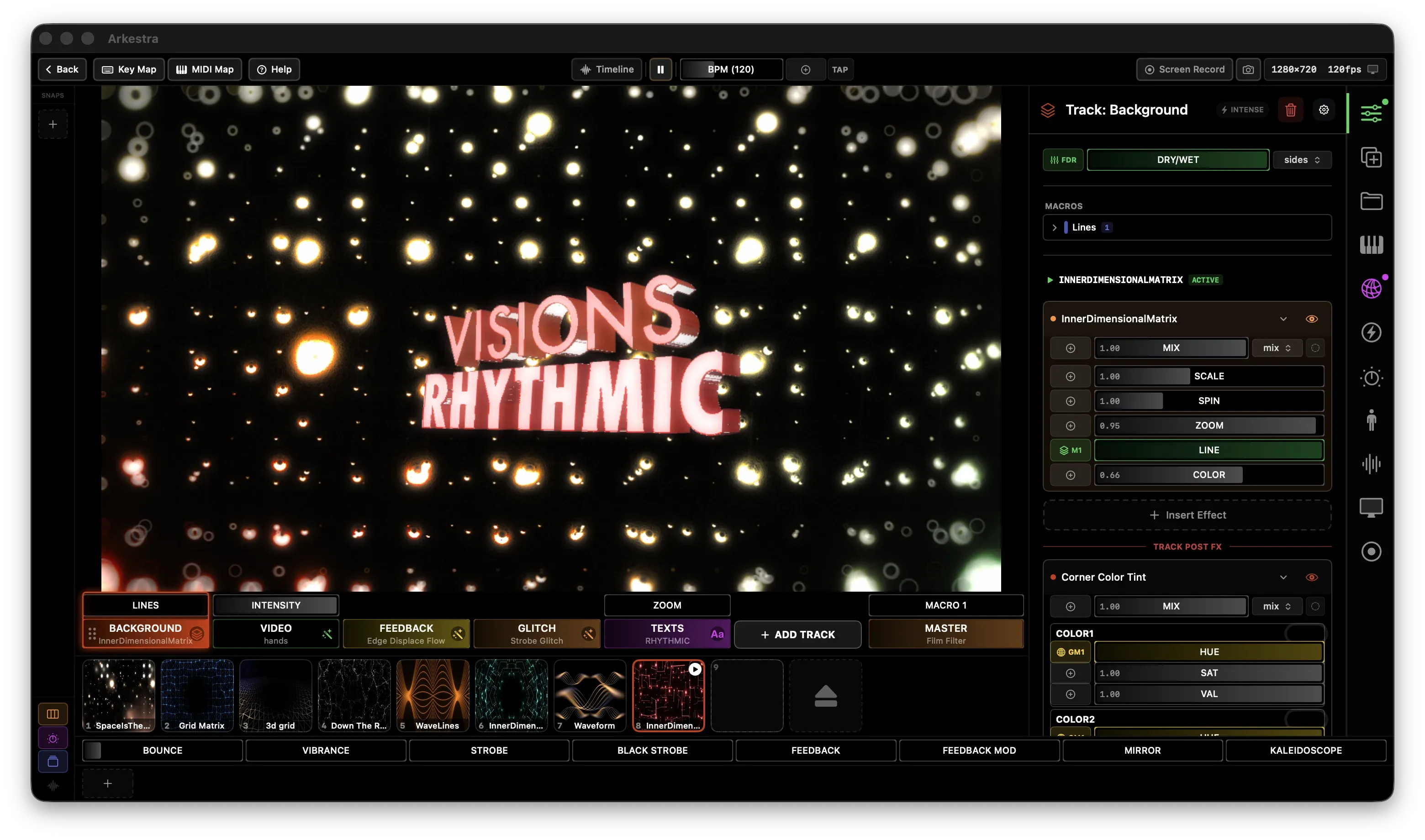
The four regions
Section titled “The four regions”┌────────────────────────────────────────────────────────┐│ Top Bar ││ Navigation, transport, BPM, recording, mapping modes │├──────────────────────────────────┬─────────────────────┤│ Canvas │ ││ Live render output │ Inspector / ││ (Track List overlays bottom) │ Browser (right) │├──────────────────────────────────┤ ││ Chain Slots Bar │ ││ One slot per chain preset │ │└──────────────────────────────────┴─────────────────────┘Top Bar
Section titled “Top Bar”
The bar across the top contains:
- Back / project name — return to the project browser
- Key Map / MIDI Map — enter keyboard or MIDI mapping mode
- Transport — play/pause the render and timeline (
Space) - BPM — set tempo and sync to Ableton Link
- Screen Record / Screenshot — capture the render output
- Resolution badge — shows current render size and fps; click to open Output settings
Canvas
Section titled “Canvas”The live render output. The canvas always shows the master output — after all regular tracks are blended and passed through the Master Output track.
Track List
Section titled “Track List”Each column is a Track. Tracks are mixed vertically. Click a track to select it and see its chains in the Chain Slots Bar below.
- Add track — Click the Add Track button (
⌘T) at the end of the track list - Reorder — Drag a track column to a new position
- Fader — Drag the fader in the track tile to control its output level
Chain Slots Bar
Section titled “Chain Slots Bar”Shows one chain slot per chain preset in the selected track. Each slot represents a complete Chain (an effect rack). Click a slot to make it the active chain.
- Add chain — Click the
+slot at the end of the bar - Reorder — Drag slots left or right
- Activate — Click a slot to switch to that chain instantly
Inspector / Browser (right panel)
Section titled “Inspector / Browser (right panel)”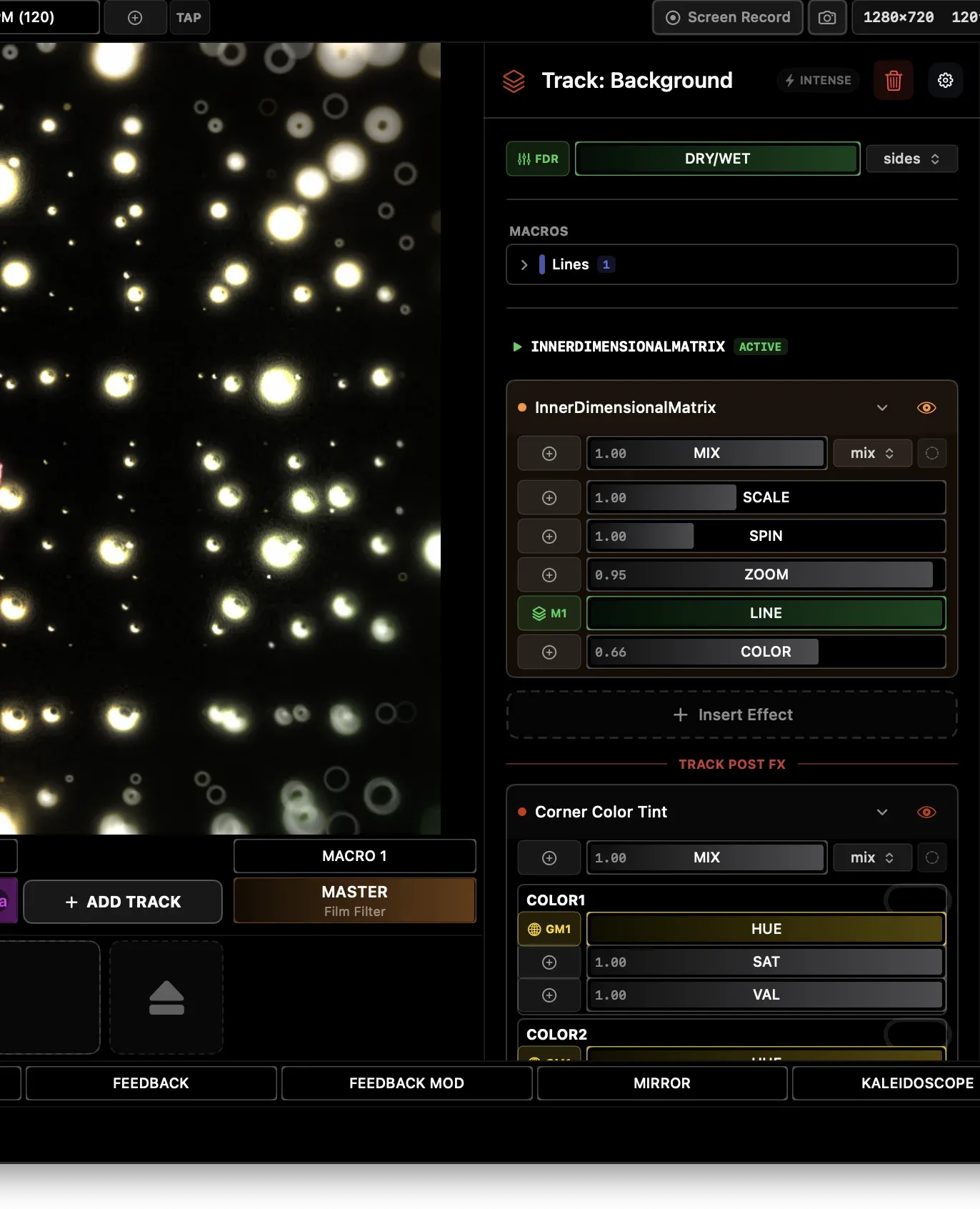
The right panel has multiple sections. Select a section by clicking the icons in the vertical sidebar on the right edge of the panel.
| Panel | Shows |
|---|---|
| Inspector | Parameters of the selected track, chain, or effect |
| Add Content | Searchable library of shaders, media, and generators |
| MIDI | MIDI controller connections and mappings |
| Audio | Audio input and frequency band configuration |
| Output | Render size, Syphon/NDI, external display |
| OSC / Vision / Synth / … | Additional control and input sources |
Press Escape from any non-Inspector panel to return to the Inspector.